Sharing a file or a folder
If you want to share items in your Cloud with friends or family, you can create a share for these items.
When you share a file or folder, recipients of the sharing link can access the shared content in Cloud and download it. You can protect the share with a password and limit it to a specific period of time.
If you share a folder, you can also give other users extended rights if you want them to be able to add and delete files in the shared folder. Otherwise, recipients of the sharing link can only view and download the contents of the folder.
-
Tap the share icon at the bottom right.
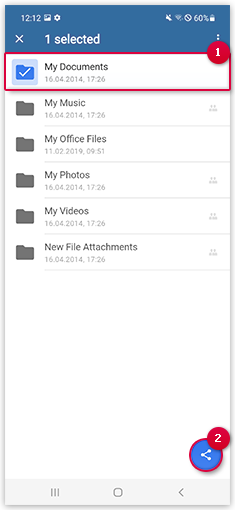 A new window appears.
 -
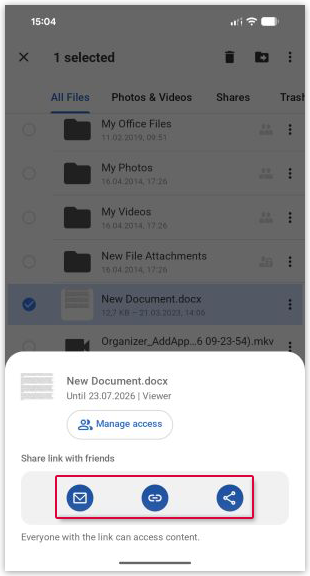
Choose how you want to share the sharing link.
- Send by email: Tap the envelope icon. The sharing link is inserted into a new email.
- Copy to the clipboard: Tap the paperclip icon.
- Share via another app: Tap the share icon and select the desired app.
Was this article helpful?